List
AI Subtitle Generator: 6 Caption Tools for YouTube Compared
YouTube's free captions, five paid tools and a plain answer on when a lofi or sleep channel needs captions at all.

The best AI subtitle generator for most YouTube creators is the free one already in YouTube Studio. Automatic captions appear after you upload, and you can fix any line by hand. A paid tool earns its place when you want styled captions burned into the picture, a subtitle file to translate, or bold captions for Shorts.
What struck me reading through these tools is how differently they work underneath. Some make a file that sits on YouTube, others paint the words onto the picture, and that choice matters more than any accuracy claim on a homepage.
Start with YouTube automatic captions
YouTube makes automatic captions with speech recognition after you upload, in dozens of languages. They cost nothing, there's no watermark, and viewers can switch them on or off. YouTube is upfront that they aren't perfect: its help page says the quality may vary, and that accents, dialects, mispronunciations and background noise can all throw them off.
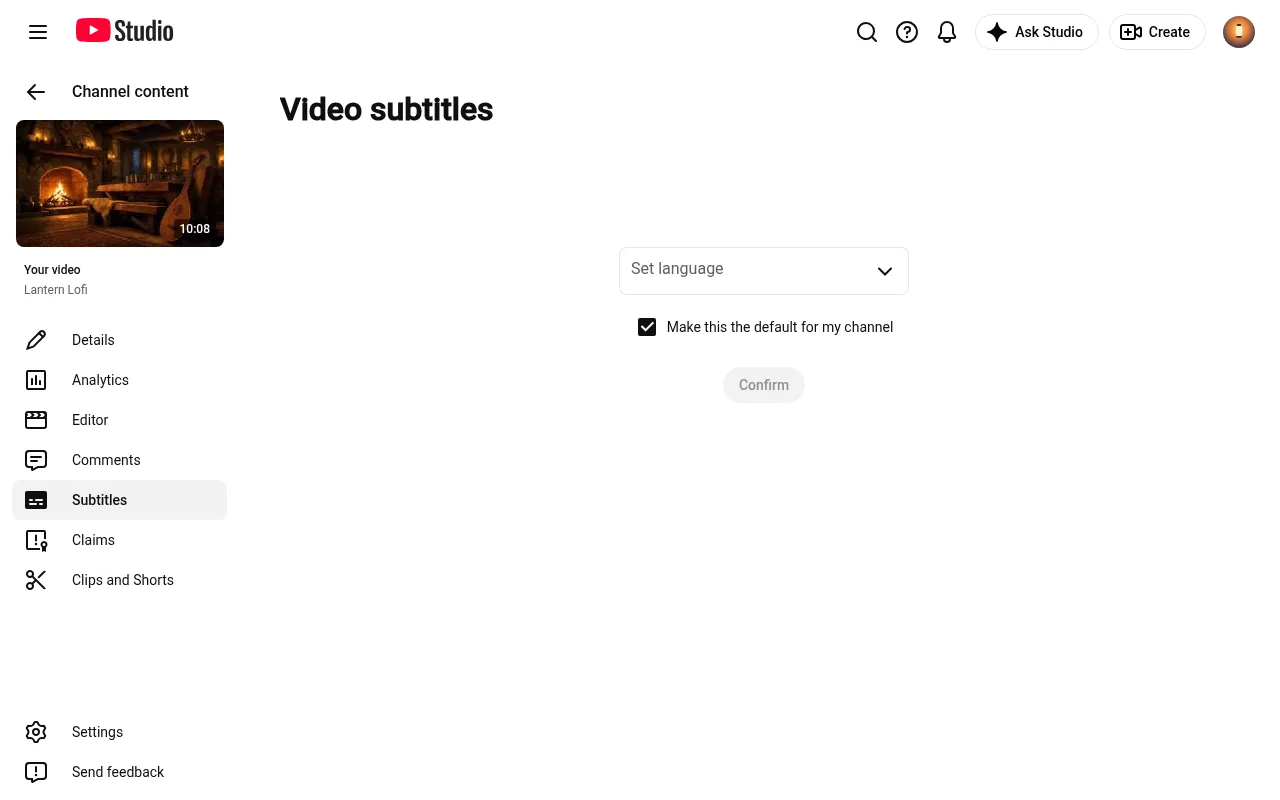
So treat them as a first pass and read them through. To edit them:
- Sign in to YouTube Studio and open Subtitles from the left menu.
- Click the video.
- Next to the automatic subtitles, click More.
- Edit or remove any part that wasn't transcribed properly.
Captions don't always appear. YouTube lists the usual reasons: the language isn't supported, the video is too long, the sound is poor, there's a long silence at the start, or several people talk over each other. Complex audio can also mean they aren't ready yet when you check.
Live streams are a special case. Automatic captions on a live stream are English only, and they don't stay on the video after the stream ends. YouTube makes new captions for the recording, and they can differ from the live ones.
What to look for in an AI video caption generator
Every tool here turns speech into timed text. The differences that matter for a YouTube channel are these:
- Burned in or a separate file. Burned-in (hardcoded) captions are part of the picture, so you control the font, colour and position, but viewers can't switch them off. A subtitle file such as SRT or VTT is uploaded to YouTube next to the video, so viewers can turn it on or off and YouTube can offer it in other languages.
- What the free version holds back. Free plans usually add a watermark, cap the export length or lock the subtitle file download.
- Languages and translation. Check that your spoken language is supported, and whether the tool can translate the captions for viewers abroad.
- Editing. You will correct names and odd words, so a quick editor in the browser or app matters more than a headline accuracy figure.
The two names get mixed up a lot. Subtitles give the spoken words and assume you can hear everything else, while closed captions also describe sounds, such as [applause], for viewers who can't hear them. YouTube handles both on the same Subtitles page.
Long-form videos with speech usually want a file. Shorts usually want burned-in captions, since that's the style people expect on vertical video.
The AI subtitle generator tools compared
These five are the ones I'd try after YouTube Studio. Prices are as listed on each company's site in October 2026.
VEED
VEED's auto subtitle generator works in the browser. Upload a video, it writes the subtitles, and you edit the wording and style before you export.
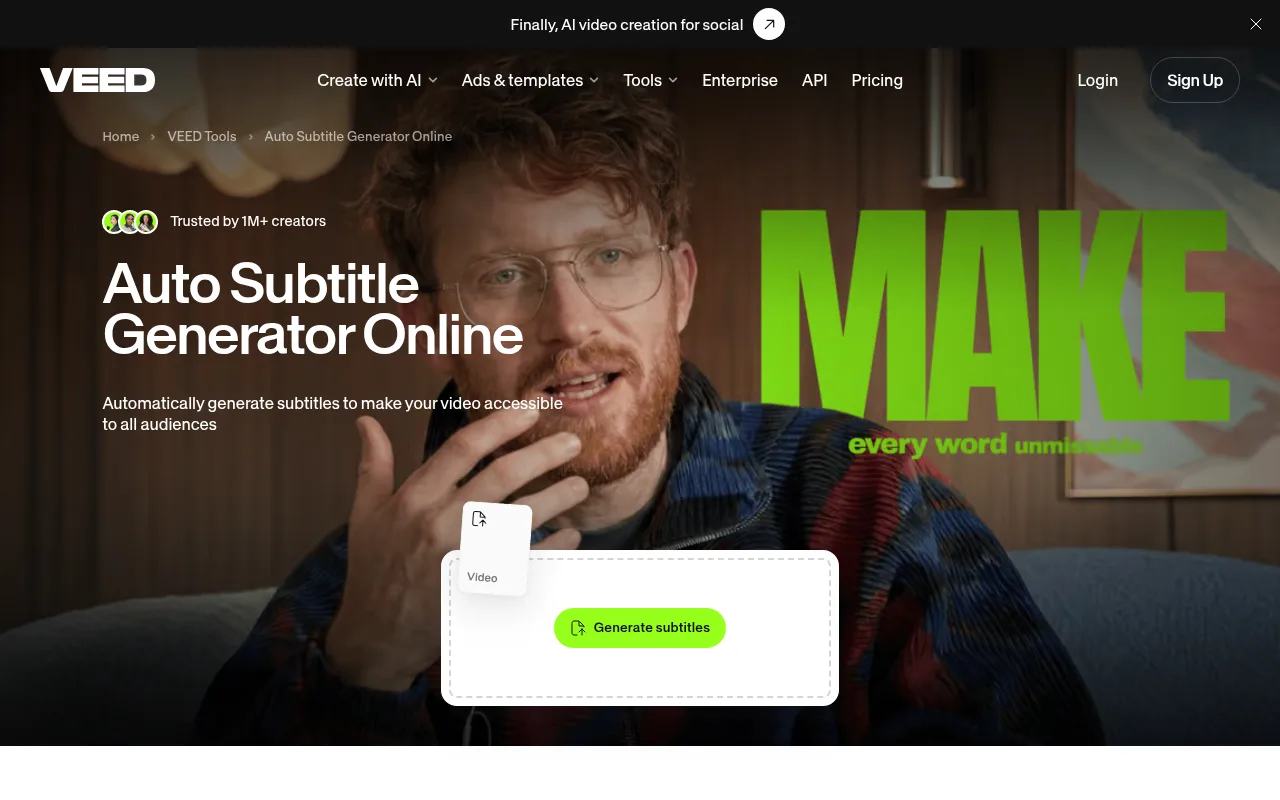
You can burn the subtitles into the video or download them as an SRT, VTT or TXT file, and there's a toggle to translate them as they're made. It's free to start, but the free version is for shorter videos and doesn't include subtitle file downloads. VEED's page says the Creator plan starts at $20 a month.
Best for: creators who want both a styled burned-in version and a file from the same editor.
Kapwing
Kapwing is another browser editor with auto-subtitling, plus translation into over 60 languages and SRT or VTT downloads.
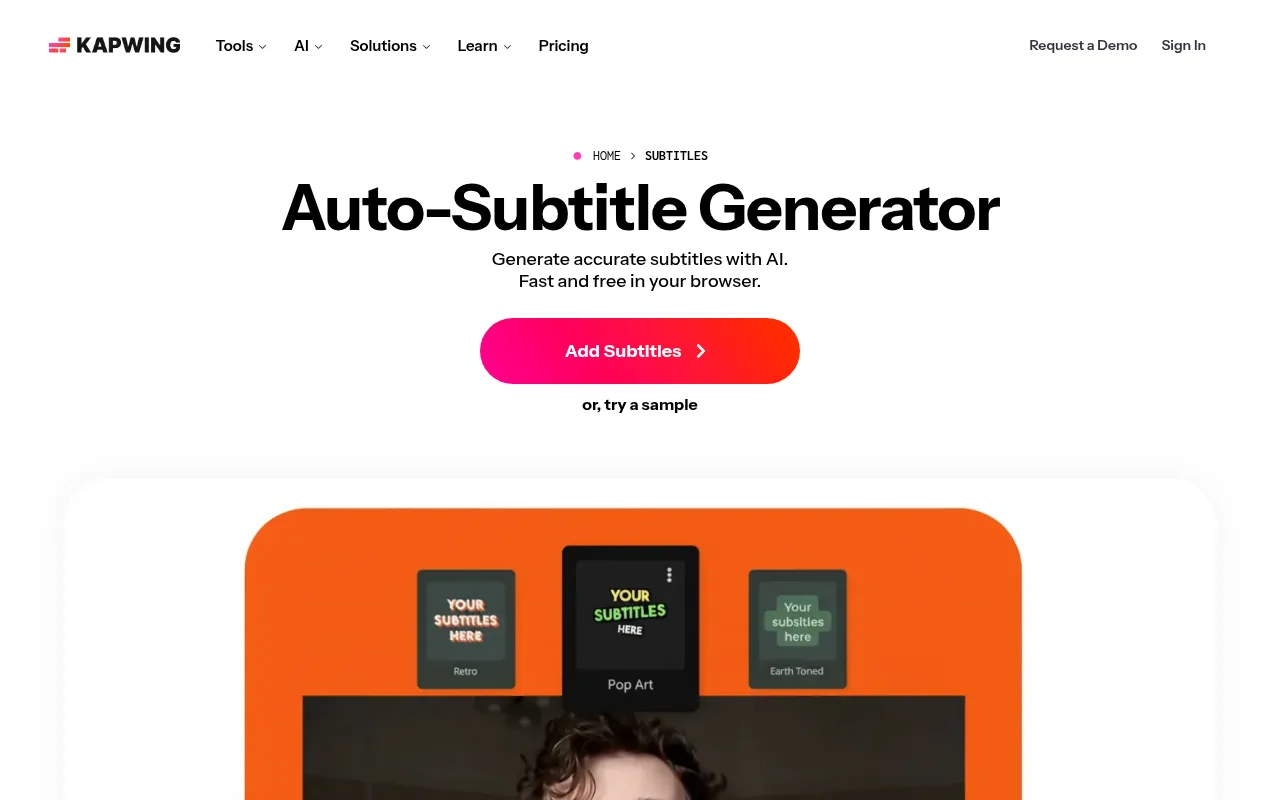
The free plan gives you up to 10 minutes of auto-subtitling, exports up to 4 minutes long at 720p, and a watermark. Pro is $16 a month billed annually or $24 month to month, and raises auto-subtitling to 1,000 minutes a month.
Best for: short clips and testing the idea before you pay.
Descript
Descript edits video by editing its transcript. Delete a sentence from the text and it's gone from the video, and the captions come straight from that same transcript.
It transcribes 25 languages and detects speakers on every plan, including the free one. You can export subtitles as SRT or VTT files with speaker labels, or style captions that stay on the video itself. The free plan covers 60 minutes of media a month, with a watermark and 720p exports. Hobbyist is $16 or $24 a month and Creator $24 or $35, the lower price on a yearly plan.
Best for: talking videos, podcasts and anything with more than one speaker.
CapCut
CapCut is a full video editor with an auto captions tool. It recognises the spoken language, writes the captions and can translate them, and CapCut describes the speech-to-text as free of charge.
On the desktop and mobile apps you can export captions as an SRT or TXT file, but only captions made by auto captions can be exported, not text you typed in. Check the current caption limits and watermark rules in the app before you build a routine around it.
Best for: creators already editing in CapCut, especially for Shorts.
Submagic
Submagic is built for short-form video. It makes styled captions in 123 languages and exports the finished clip.
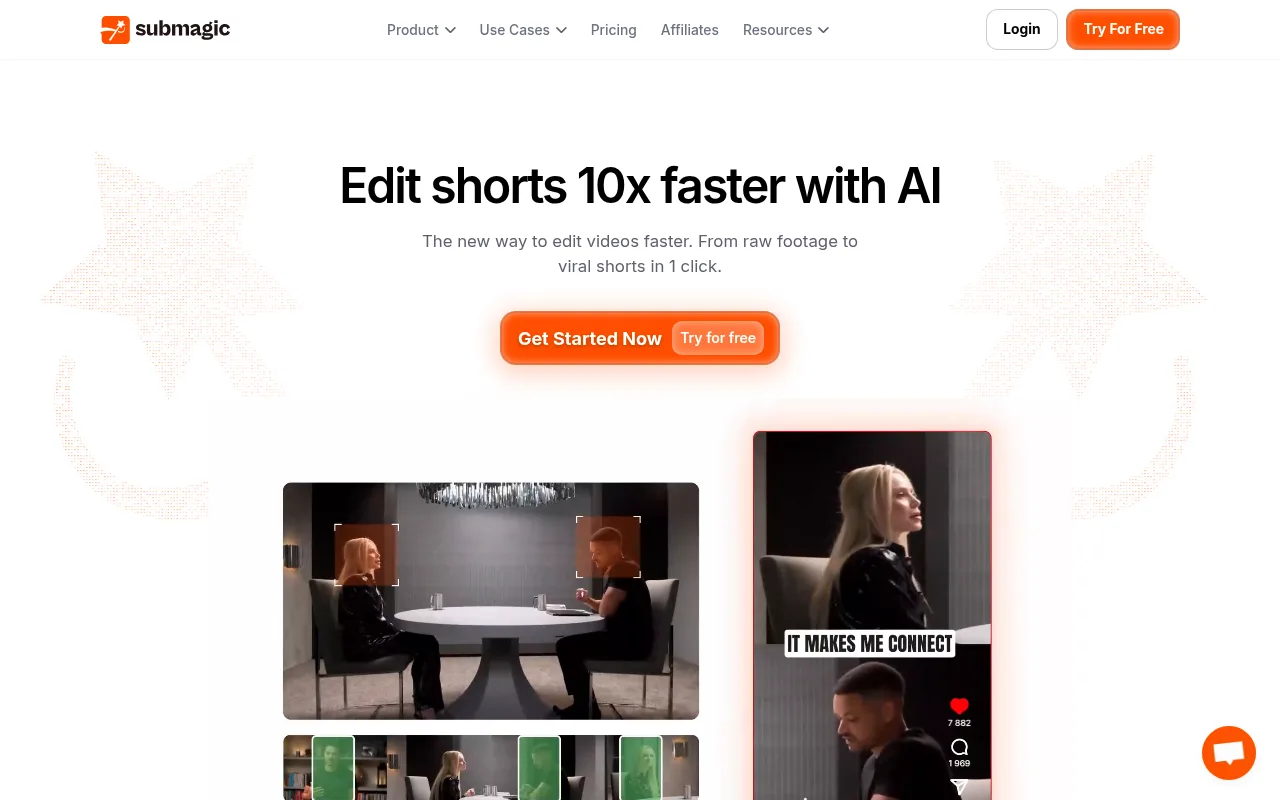
There's no free plan listed on its pricing page, only a free sign-up. Starter is $19 a month or $12 billed yearly, with videos up to 2 minutes long. Pro is $39 or $23, with videos up to 5 minutes. None of the plans add a watermark.
Best for: Shorts and clips where the captions are part of the look.
Side by side
| Tool | Best for | Captions as | Paid plans from |
|---|---|---|---|
| YouTube Studio | Every long-form upload | File on YouTube | Free |
| VEED | Styled captions and a file | Burned in, SRT, VTT or TXT | $20 a month (Creator) |
| Kapwing | Short clips | Burned in, SRT or VTT | $16 a month billed annually (Pro) |
| Descript | Talking videos | Burned in, SRT or VTT | $16 a month billed yearly (Hobbyist) |
| CapCut | Editing and Shorts | Burned in, SRT or TXT | Check in the app |
| Submagic | Short-form styling | Burned in | $12 a month billed yearly |
What a free AI subtitle generator gets you
YouTube Studio is the only one that's free with no watermark and no export cap, because the captions live on YouTube rather than in a file you export. Every other free version trades something away:
- Kapwing: 10 minutes of auto-subtitling, 4 minute exports, a watermark.
- Descript: 60 minutes of media a month, a watermark, 720p.
- VEED: shorter videos only and no subtitle file download.
- CapCut: free speech-to-text, so check the current limits in the app.
- Submagic: no free plan listed.
A good free routine is to let YouTube make the captions, then fix them in Studio. Bring in a paid tool when you want the styled, burned-in look or a translated file.
When a music or ambient channel needs captions
Not for the music itself. An instrumental lofi or sleep video has no speech to transcribe, so YouTube's automatic captions will be missing or will guess at words that aren't there. That's fine, and it's what YouTube's help page means when it says captions can fail when speech isn't recognised.
There are three cases where captions still help a music channel:
- Sung lyrics. This is the big one, and a nice touch on a lofi track with vocals. Upload a timed lyrics file to YouTube, or burn the lyrics into the picture as part of the design. My guide to the AI lyric video generator covers the burned-in route.
- A sound description. When you type captions by hand, YouTube suggests adding tags like [applause] or [thunder] so viewers know what's happening. I like this idea for sleep and study videos: a line such as "[soft piano with rain]" at the start tells someone with captions on exactly what they're listening to.
- Spoken parts. A guided meditation, a sleep story or a short intro where you talk all have speech, so they get captions like any other video.
Plenty of people read captions who can hear perfectly well. An AP-NORC poll found that one third of people in the US always or often switch subtitles on for TV and films. Research by Verizon and Publicis Media, as reported by Kapwing, found that 69% of people had watched video with the sound off in public, and that roughly 80% of people who use captions have no hearing impairment. For a channel with lyrics or speech, that's a lot of viewers who will read along.
How to add captions to a YouTube video
If a tool gave you a subtitle file, or you'd rather type captions yourself, it all happens on the same page in YouTube Studio:
- Open Subtitles from the left menu and pick the video.
- Click Add language and choose the language.
- Under Subtitles, click Add.
- Choose how to add them:
- Upload file, then With timing for an SRT or VTT file from one of the tools above.
- Auto-sync, then paste or upload a transcript and YouTube sets the timing.
- Type manually, then type as the video plays. YouTube sets the timings for you.
- Save or publish.
For burned-in captions, YouTube has nothing to do: they're part of the video you upload, so style them in your editor before you export.
A good description helps people find the video too. If you're writing one, my piece on the YouTube description generator goes through it.
A caption-free music channel with Chillframe
Instrumental sleep and ambience channels are one corner of YouTube where captions never come up. There's no speech in the video, so there's nothing to transcribe, check or fix, and it's a growing space to build in. My guide to starting a lofi YouTube channel walks through the setup, and sleep music on YouTube covers the night-time side.
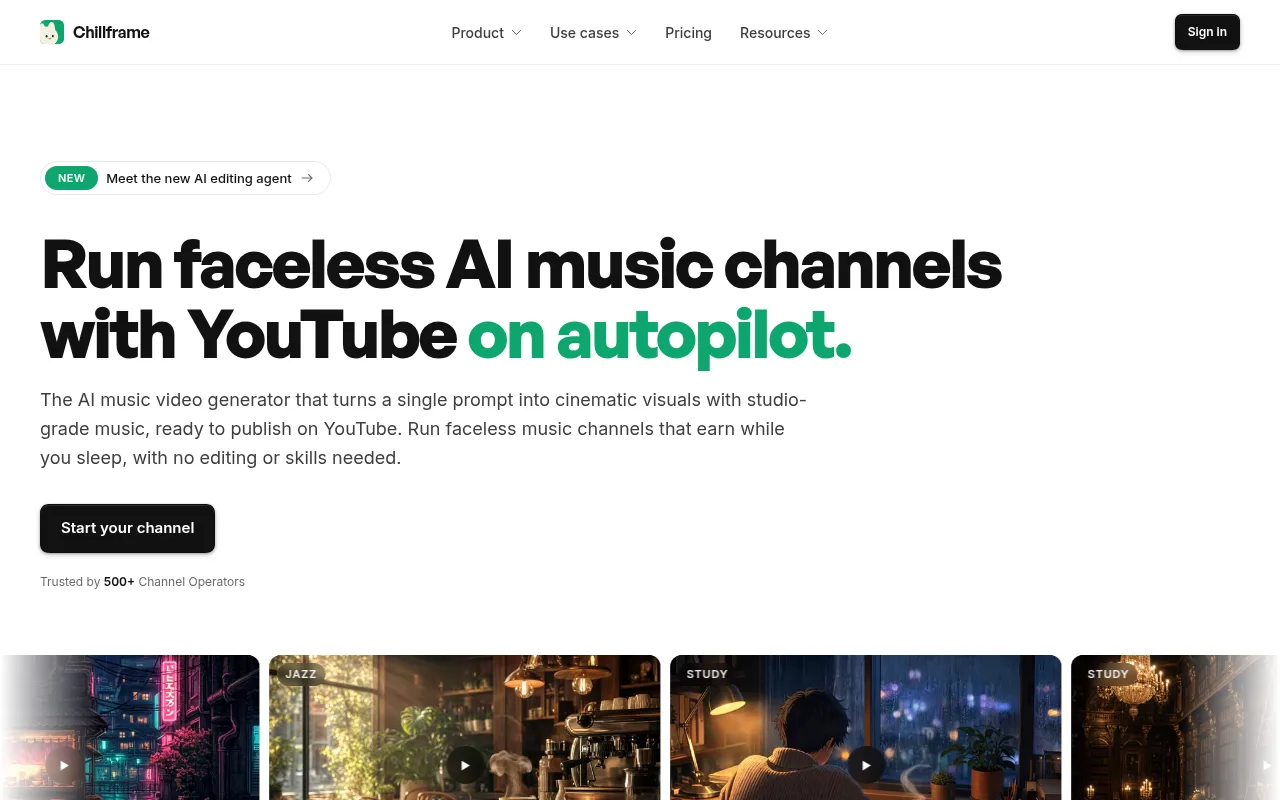
Chillframe makes the whole video for a channel like that: original music made fresh for each video, or the sound of the scene, a matching visual and the finished video, then publishes it to your YouTube channel.
For a new hour of sleep music every night, the setup is short. Start from a quiet look such as Moonlit Ridge, or describe your own scene, like a lighthouse in sea fog. Keep the audio on Instrumental for soft music with no singing, or choose Ambience only for rain with no music. Set the length to 1 hour, then make it a Series that runs all 7 days a week at 9pm, so each new video is up before bedtime.
The first video is held for you to review. With auto-publish on, approve it, and after that one the channel is fully hands-off: Chillframe automatically makes a fresh hour every night and posts it with an optimised title, description and tags, and a thumbnail taken from the video.
Chillframe doesn't make subtitles, though. If you add vocals or a spoken intro later, those captions still come from YouTube Studio or one of the tools above.
A still night scene is what the Starter plan makes, and at $19 a month it includes the one Series this channel needs.
AI subtitle generator FAQ
Are YouTube's automatic captions accurate enough?
For clear speech in a supported language, they make a good first pass. YouTube itself says the quality may vary, and accents, mispronunciations and background noise all cause mistakes. Read them through in Studio and fix names and odd words before you rely on them.
Can I upload my own SRT file to YouTube?
Yes. In YouTube Studio, open Subtitles, pick the video, add the language, then choose Upload file and With timing. If your file is just the words with no timestamps, choose Without timing and YouTube matches the text to the video for you.
Should I burn captions into the video or upload a subtitle file?
For long videos with speech, upload a file. Viewers can switch it on or off, and YouTube can offer it in other languages. For Shorts, burn the captions in, since that's the look people expect on vertical video and you control the font and position.
Do I need captions on a lofi or sleep video?
Not for instrumental music, since there's no speech to transcribe. Add them when the track has sung lyrics or a spoken part, like a sleep story or a short intro. A one-line sound description such as "[soft piano with rain]" is an optional nice touch for viewers who watch with captions on.
Is there a free AI subtitle generator with no watermark?
YouTube Studio's automatic captions are free, with no watermark and no export cap, because they live on YouTube rather than in a file you export. Kapwing and Descript both add a watermark on their free plans. Submagic adds no watermark, but it has no free plan listed.