List
YouTube Tag Generator: 8 Free Tools Compared, Plus a Worked Tag Set
What each tag tool gives you, how many tags YouTube actually needs, where hashtags show up, and the tag set I'd use on a three-hour study-music video.

A YouTube tag generator turns your video's title or topic into a list of tags in a few seconds. The best free ones are RapidTags, TunePocket, Keyword Tool, vidIQ and TubeBuddy, and none of them needs to cost you anything to try. What's worth knowing is how little tagging YouTube asks of you: a short, precise set does the job, and the time you save goes into the title and the description, which YouTube itself says matter more, and a few honest hashtags.
How much YouTube tags still matter
YouTube is clear about it. Its help page says tags can be useful if your video's content is commonly misspelled, and that otherwise they play a minimal role in discovery. The title, thumbnail and description matter more.
So the job of a tag generator is small and specific. You want tags that cover:
- The exact phrase people search for, like "lofi study music".
- Common misspellings and spacing variants, like "lo fi" and "low fi".
- Alternate names for the same thing, like "study beats" or "chillhop".
A long list of loosely related keywords doesn't add to that, and YouTube's own page warns that adding excessive tags to a description breaks its spam policies.
One thing to keep apart: tags and hashtags are different. Tags go in the Tags field in YouTube Studio. Hashtags go in your title or description where people can see them, and they get their own section further down.
The best YouTube tag generator tools, compared
Here's how the eight line up. I've only listed what each tool's own page says.
| Tool | Cost | Account needed | What you give it | What it gives you |
|---|---|---|---|---|
| RapidTags | Free, 5 generations a day | No | A title or topic | A ranked list of tags, misspellings included |
| TunePocket | Free | No, logging in hides captcha and ads | A topic | Tags matched against trending videos, with an optional misspellings box |
| Keyword Tool | Free, search volume on Pro | No | A seed keyword | 750+ suggestions from YouTube autocomplete |
| vidIQ | Free | Optional, a free account gives you more tags | A title or topic | Tags sorted by score, with a Copy all button |
| TubeBuddy | Free licence with limited access, paid licences | Yes, a browser extension | Whatever you type in the Tags field | Tag suggestions inside YouTube Studio |
| RightBlogger | Free | No | A topic, keyword or video URL | A tag list, with tone and 100+ language options |
| Otto | Free | The page says no, but its form asks for name and email | Title, keyword, niche and an optional summary | Up to 15, 30 or 50 tags |
| CoSchedule | Free | Not stated | Title, target audience and keyword | A list of tags tailored to the video |
The last three are plain generators: RightBlogger, Otto and CoSchedule all turn a few details into a list you then trim. They work fine. The five below are the ones I'd reach for first, because each does something the others don't.
RapidTags
RapidTags is the quickest place to start. You type in your video title or topic and it returns a ranked list of tags built from YouTube data, including related phrases, long-tail variations and the common misspellings you'd probably miss yourself.
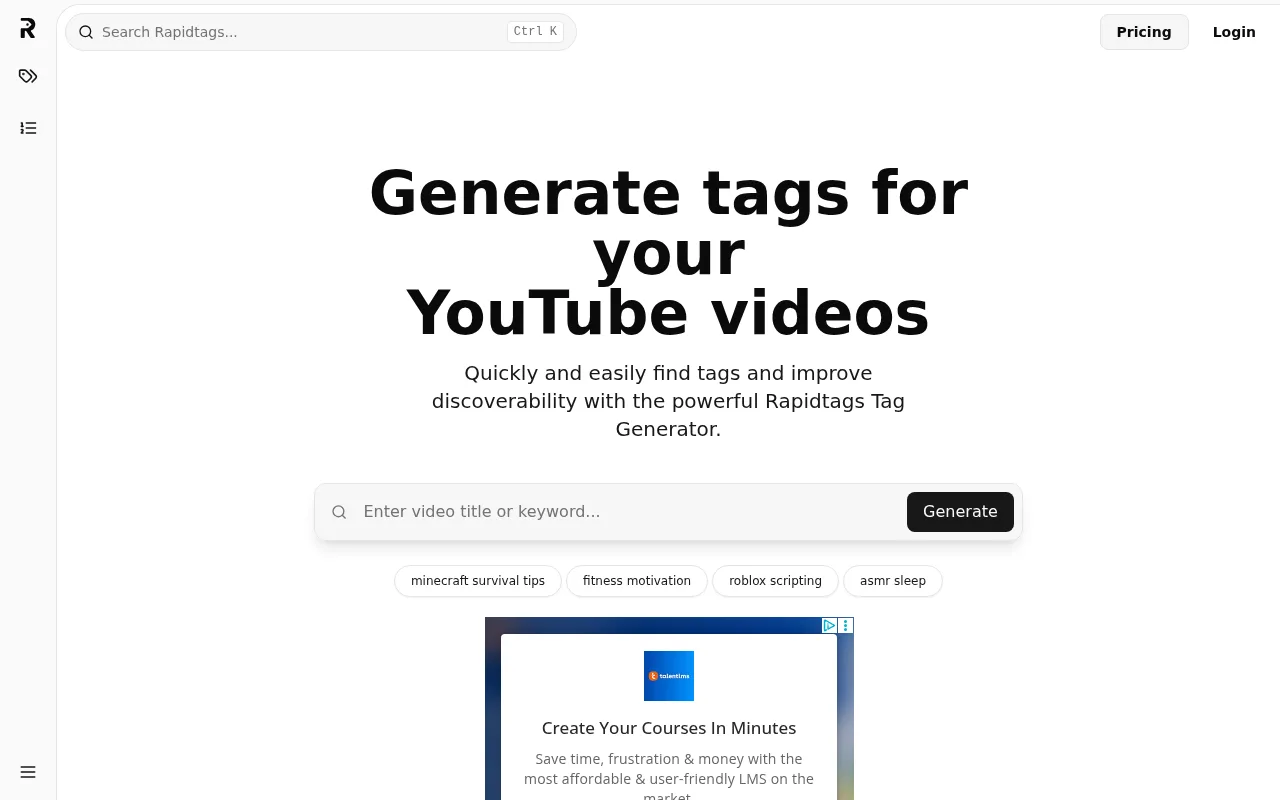
You can add or remove tags in its editor, check the set fits YouTube's character limit, and copy it straight into YouTube Studio. The free generator gives you 5 generations a day with no account. A free account opens the full Keyword Editor, which saves every generation to your history and lets you build a library of go-to tags that it adds to each new session.
TunePocket
TunePocket is a music-licensing company, and its free tags generator suits music channels well. It matches its suggestions against the tags trending videos on your topic already use, so you start from real tags rather than invented wording.
Two options stand out. A misspellings checkbox adds typo variations of your main keywords, which is exactly the job YouTube says tags are for. And a newer option turns your tags into hashtags. You can remove any tag before you copy the set, and a character counter follows YouTube's own way of counting.
Keyword Tool
Keyword Tool pulls suggestions from YouTube's autocomplete, the list that drops down as you type in the search box. The free version gives you over 750 suggestions per seed keyword with no account.
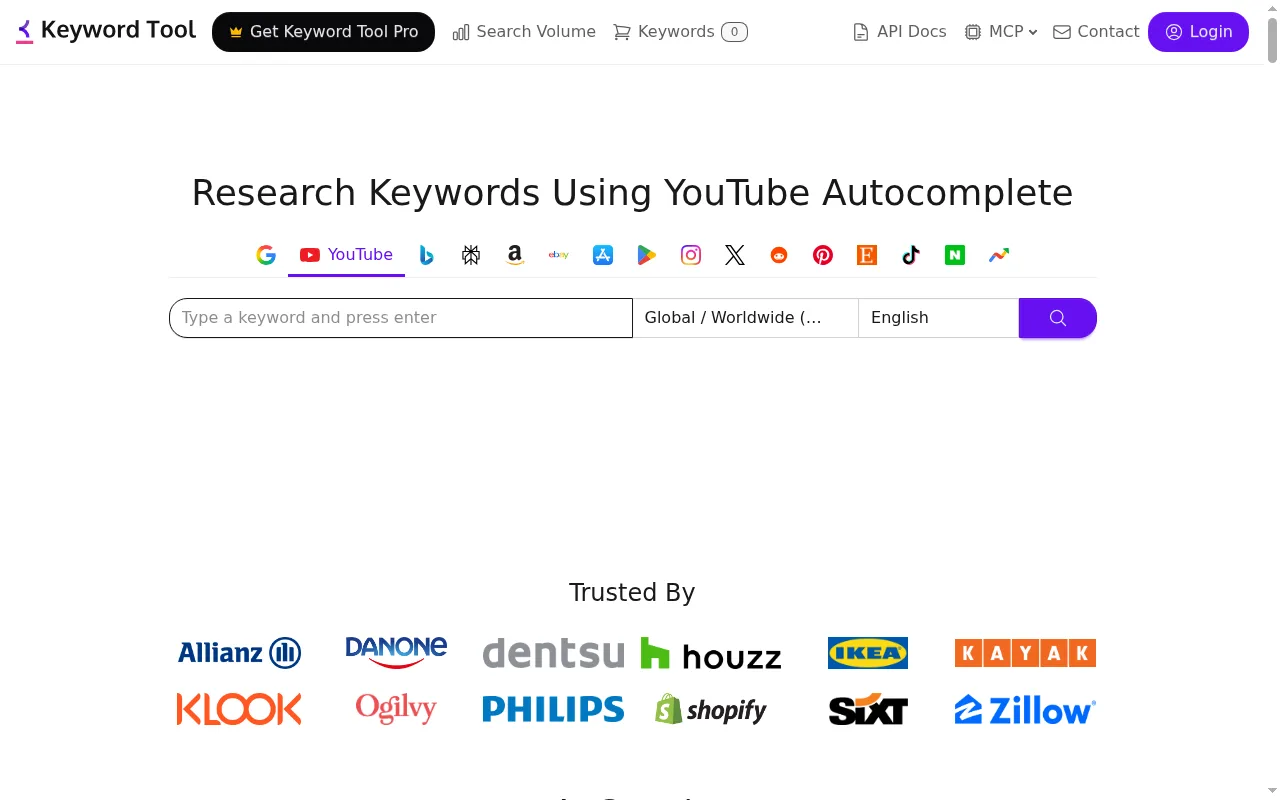
Because autocomplete reflects what people actually type, it's a good way to find the spacing variants and alternate names worth tagging. Search volume, trend history and bulk upload are on Keyword Tool Pro. For deciding what a video should be about in the first place, my YouTube keyword generator roundup goes further into it.
vidIQ
vidIQ's free YouTube tag generator turns a title or topic into tags sorted by a score, with a Copy all button for pasting them into YouTube Studio.
A free vidIQ account gives you more tags and lets you connect your channel for suggestions tailored to it. With the vidIQ browser extension you can apply tags inside YouTube Studio without copying and pasting. Its advice matches YouTube's: only add tags that clearly describe the video, and skip tag stuffing.
TubeBuddy
TubeBuddy works inside YouTube itself. It's a browser extension, and its Insta-Suggest tool suggests tags while you type in the Tags field of your video's details page. One click adds a suggestion to your list.
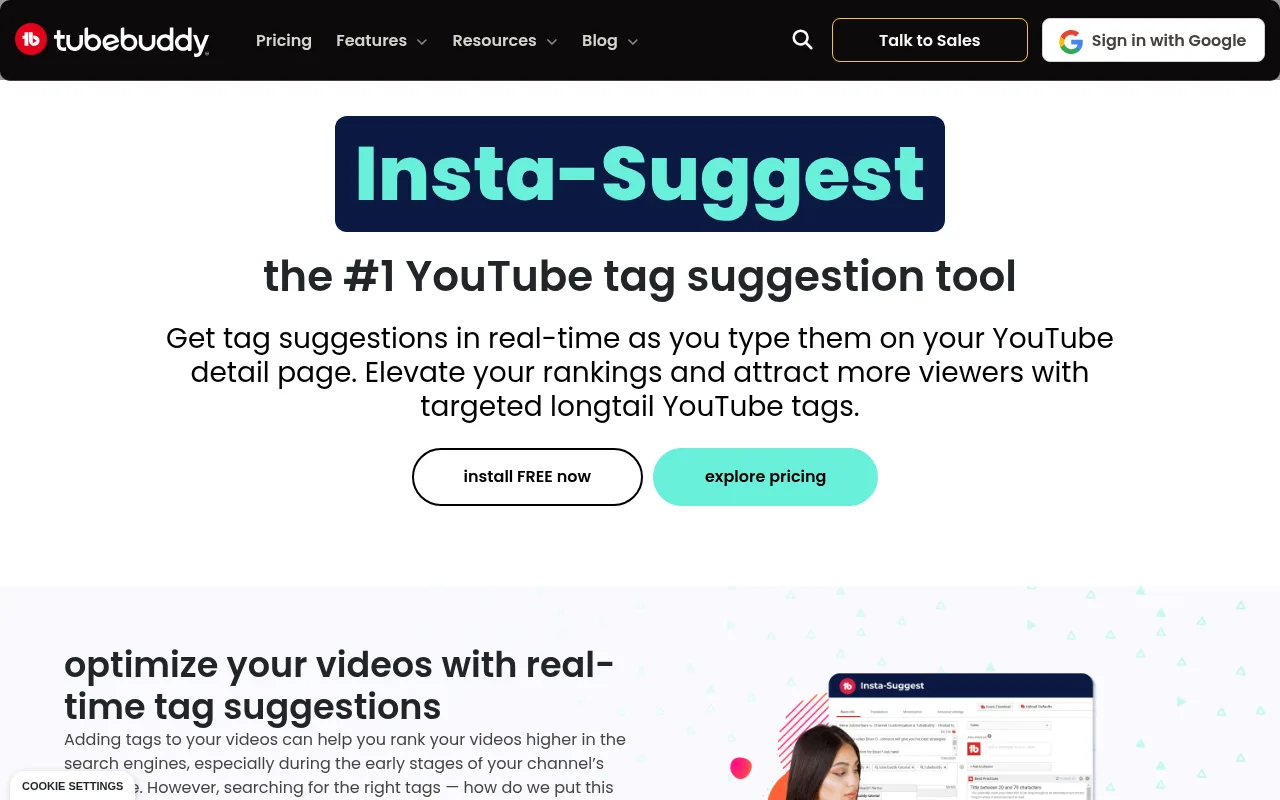
Insta-Suggest is on the Free licence with limited access, and in full on the paid licences. TubeBuddy's pricing page also lists Tag Sorter and Tag Lists on every paid tier, which help if you reuse a core set of tags across a channel. It suits you if you'd rather tag where you upload than in another tab.
How to add tags in YouTube Studio
Once you have your list, it goes into the Tags field. These are the steps from YouTube Help for a video you've already uploaded:
- Sign in to YouTube Studio.
- From the left menu, choose Content and select your video.
- Click Show more and add your tags.
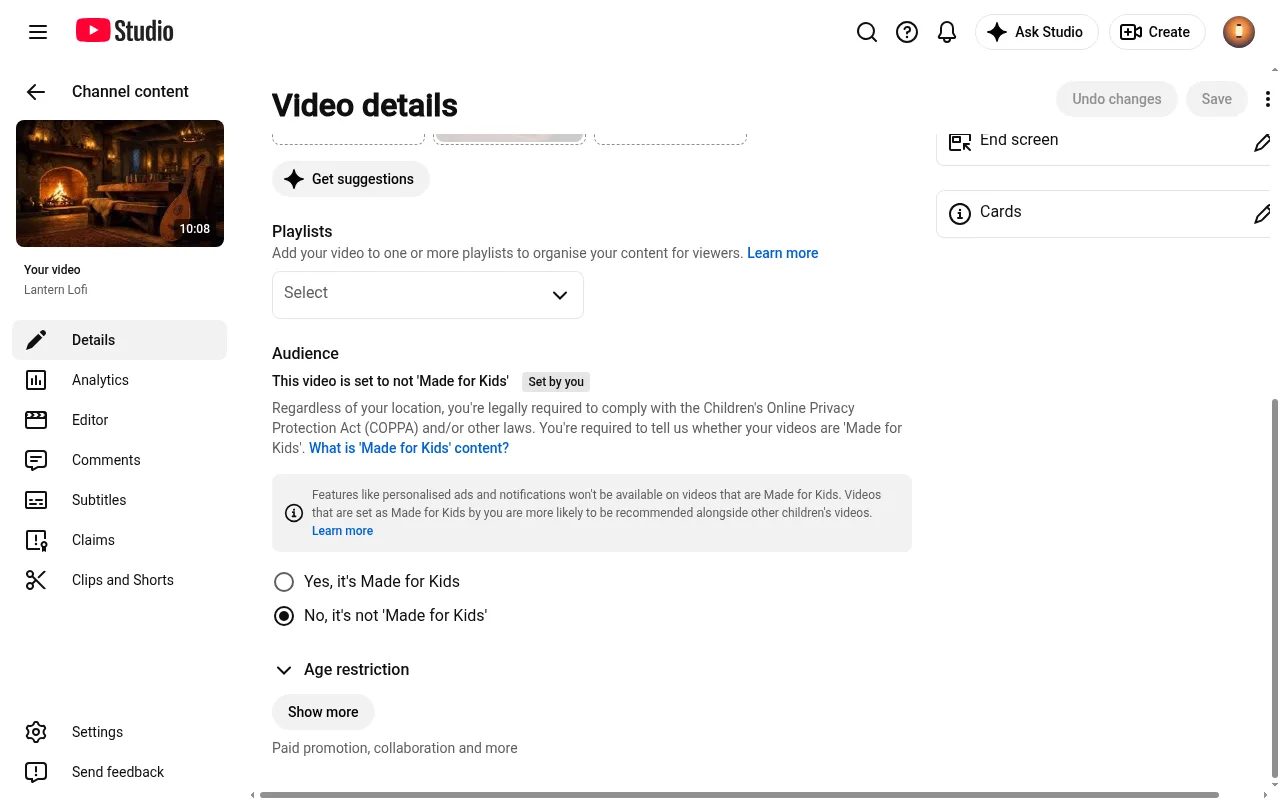
- Select Save.
For a new upload, the Tags field is in the same place: on the Details page, select Show more at the bottom to reach the advanced settings. If you've uploaded a similar video before, Reuse details copies selected details across from it, so you don't start from a blank page.
YouTube allows up to 500 characters of tags in total. CoSchedule suggests 5 to 8 tags per video, and vidIQ suggests 5 to 15. I'd put them in this order:
- Your exact target phrase first.
- The common misspelling or spacing variant next.
- Alternate names for the same thing after that.
Where hashtags show on YouTube
Hashtags are the visible half of your metadata. You add them to your title or description, each one links to a page of other videos with the same hashtag, and YouTube shows up to three of them by your video title.
YouTube's rules for them are short:
- No spaces. Join the words, like #studymusic.
- No more than 60. If a video has more than 60 hashtags, YouTube ignores every one of them.
- Over-tagging has a cost. YouTube says it may remove the video from your uploads or from search.
- They have to match the video. Hashtags that have nothing to do with the content can get it removed.
Two or three honest hashtags at the end of your description are plenty. TunePocket and Keyword Tool can both suggest them, and vidIQ has a separate free hashtag generator.
A worked tag set for a three-hour study-music video
Here's how I'd tag a long lofi study mix. This is an example set to show the thinking, not a measured result.
Title: 3 Hours of Lofi Study Music for Focus and Homework
Tags:
- lofi study music
- lo fi study music
- lo-fi study music
- low fi study music
- study music
- study beats
- lofi hip hop
- chillhop
- music for studying
- 3 hour study music
Hashtags, at the end of the description: #lofi #studymusic #studybeats
Why each one earns its place:
- "lofi study music" is the exact phrase the title is built on, so it goes first.
- "lo fi", "lo-fi" and "low fi" are the spacing variants and the misspelling. This is the job YouTube says tags are good for, since the genre's name gets spelled several ways.
- "study music", "study beats" and "music for studying" are the other ways people describe the same video.
- "lofi hip hop" and "chillhop" are the alternate names for the genre. If chillhop beats are your thing, that tag matters more.
- "3 hour study music" matches the length in the title.
What I left out: single generic words like "music" and "relaxing", the year, and anything the video isn't, like "rain sounds" on a mix with no rain. The whole set comes to under 200 characters, a long way under the 500 limit, and that's fine. For more on what this audience listens for, see my guide to lofi for studying.
Spend the saved time on the title and description
Since tags play a minimal role, the title and description are where your effort pays. The title carries the exact phrase and the length, and the first lines of the description say what the video is and who it's for.
So pick one generator from the list and run your next title through it. Keep the exact phrase, the misspellings and the alternate names, cut the rest, and add two or three hashtags to the description. Then put the time you saved into the title and the first two lines of the description.
My AI YouTube title generator roundup covers the first job, and the YouTube description generator piece covers the second, with a template for long music videos. Tags can wait until the rest of the upload is ready.
How Chillframe tags a lofi channel for you
Long lofi and ambient videos are a great niche for a faceless channel, and a good one to get into now. A channel posting several times a week has a title, a description and a tag set to write every time, and Chillframe writes all three for you on every video.

It makes original music made fresh for each video, or scene sound like rain or fire if you choose Ambience only, the visual to go with it, and the finished video up to 1 hour long. Then it publishes straight to your YouTube channel with the metadata already written.
For a study-beats channel that posts on Monday, Wednesday and Friday at 4pm, after school, the setup is one sitting. Connect your channel. Pick a look like Jazz Café Morning or Anime Rooftop Dusk, or describe a desk by a window in your own words. Leave the sound on Instrumental and set the length to 1 hour. Then give the Series those three days and that time.
Your first post is held for review, so that's the one set of tags you read. With auto-publish on, approve it, and from the second post on Chillframe automatically makes and publishes every video, fully hands-off, each with an optimised title, description and tags and a thumbnail taken from the video.
For a one-off video, the publish window writes a title, a description and tags, and one click rewrites all three using patterns from lofi study-beats channels.
The limit worth knowing after the worked set above: Chillframe's tags are single words, up to 12 of them, so phrases like "lofi study music" and spacing variants like "lo fi" aren't in the set. On a one-off video you add or remove any tag before it goes out, so paste your phrase tags in there.
The tags are written on every plan, from the Starter plan at $19 a month, and my guide to starting a lofi YouTube channel covers the rest of the setup. Let me know how you get on.
YouTube tag generator FAQ
Is there a free YouTube tag generator with no signup?
Yes. RapidTags gives you 5 generations a day with no account, RightBlogger says no signup is required, and Keyword Tool's free YouTube tool works without an account. TunePocket is free too, and logging in there only hides the captcha and the ads.
How many tags should a YouTube video have?
CoSchedule suggests 5 to 8 tags per video and vidIQ suggests 5 to 15. YouTube allows up to 500 characters of tags in total, so a short list of precise tags fits easily.
What is the difference between YouTube tags and hashtags?
Tags go in the Tags field in YouTube Studio. Hashtags go in your title or description, link to a page of other videos with the same hashtag, and up to three of them show by your video title.