List
AI Lyric Video Generator: 6 Tools Compared and How to Make One
The tools that listen to a song and time the words for you, the three styles a lyric video can take, and the steps from a finished track to an upload.

An AI lyric video generator listens to your song, writes out the words and times each line so it appears as it's sung. The ones I'd try first are Rotor, VEED, Kapwing and CapCut, which all transcribe and sync the lyrics for you. Specterr is the hands-on pick if you'd rather time every line yourself over an audio-reactive visualizer, and Chillframe makes the song and the scene the words sit on.
Lyric videos are one of the easiest videos a music channel can put out. Once the song exists, the words and a good background do most of the work, and these tools take the slowest part, the timing, off your plate.
What an AI lyric video generator actually does
There are four jobs in every lyric video, and a generator does some or all of them:
- Transcribe. It listens to the vocal and writes out the words.
- Time. It sets when each line, or each word, appears and disappears.
- Style. It sets the font, colour, size, position and animation of the text.
- Set the scene. It puts the words over something: a photo, stock footage, a visualizer or a scene made for the song.
The first two are what make it an AI lyric video generator rather than a plain video editor. A general text-to-video tool can put words on screen, but it doesn't know when they're sung. A lyric tool does.
The fourth job is where your video gets its look, and it's the part most worth spending time on. The words tell people what the song says. The scene tells them how it feels.
Three lyric video styles worth knowing
Before you pick a tool, pick a style. Each one suits a different kind of song.
- Kinetic type. The words are the visual. They pop, slide and scale in time with the beat, and there's little or nothing behind them. It suits fast, punchy songs where the rhythm of the words matters.
- Lines over a scene. Each line fades in over a background that sets the mood: a rainy street, a quiet room, a slow moving landscape. This is the calm style, and it suits lofi, acoustic and ambient songs with vocals.
- Karaoke. The full line sits on screen and each word lights up as it's sung. It's the most precise of the three, because the timing has to be right word by word, so pick a tool that lets you edit individual words.
There's a newer fourth style too. Neural Frames writes the words inside its generated images, as lettering on a wall or a sign in a landscape. Its own page is clear that this trades font-by-font precision for the look, so it's not the tool for karaoke.
The best AI lyric video generator tools compared
Here's how the six line up before we go through each one.
| Tool | Lyrics | Timing | What sits behind the words | Free way in |
|---|---|---|---|---|
| Rotor | Transcribed by AI | Synced by AI, editable | Your clips or its stock library | Make it free, pay to download |
| VEED | Transcribed by AI, can translate | Synced, editable before export | Your video, images or a visualizer | Free editor, watermark on free exports |
| Kapwing | Typed or auto subtitles | Set in the editor | Your media or stock footage | Free to start |
| CapCut | Auto lyrics, several languages | Synced line by line | Your clips or a lyric template | Free online or as a download |
| Specterr | Typed or pasted | Set by you on a timeline | An audio-reactive visualizer | Free to start |
| Chillframe | Sung lyrics written from your brief | Placed by you in the editor | A still or moving scene made for the song | Plans from $19 a month |
Rotor
Rotor is built for musicians, and lyric videos are one of its main formats alongside music videos and Spotify Canvas clips. Its Transcribe & Sync with AI button takes your uploaded track and writes out a timed transcription of the lyrics in seconds, according to Rotor's own walkthrough.

The lyrics then live under Lyrics in the toolbar, with the timestamps under a Timings tab where you fix anything it misheard. Behind the words you can use your own clips or its stock library, which Rotor puts at over 9 million clips, with more than 150 video styles and filters on top. You can build the whole video for free and only pay when you download it, and you can save a style as a template for your next release.
VEED
VEED's lyric video maker runs in the browser and is the one I'd point you to if you already edit other videos there. Its auto subtitle tool detects the lyrics in your song and transcribes them, and you can review and fine-tune them before you export.
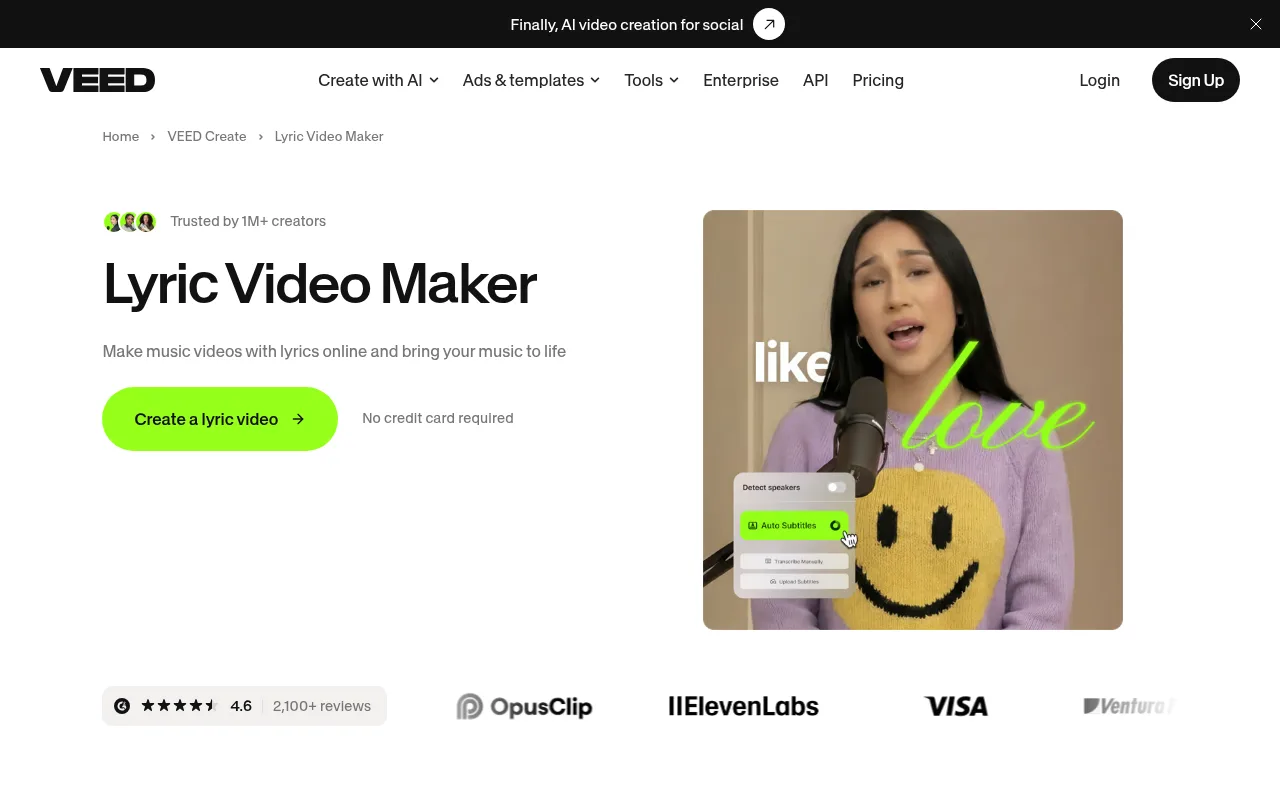
It can also translate the lyrics into other languages, which is handy for a second version of the same video. You can animate the words so they move with the music, add a music visualizer, and resize the finished video for each platform. The editor is free to use, but free exports carry VEED's watermark until you move to a paid plan.
Kapwing
Kapwing's lyric video maker is the simplest of the browser tools. You upload the song from your device or paste a link to the audio, then either type the lyrics or have it generate subtitles automatically.
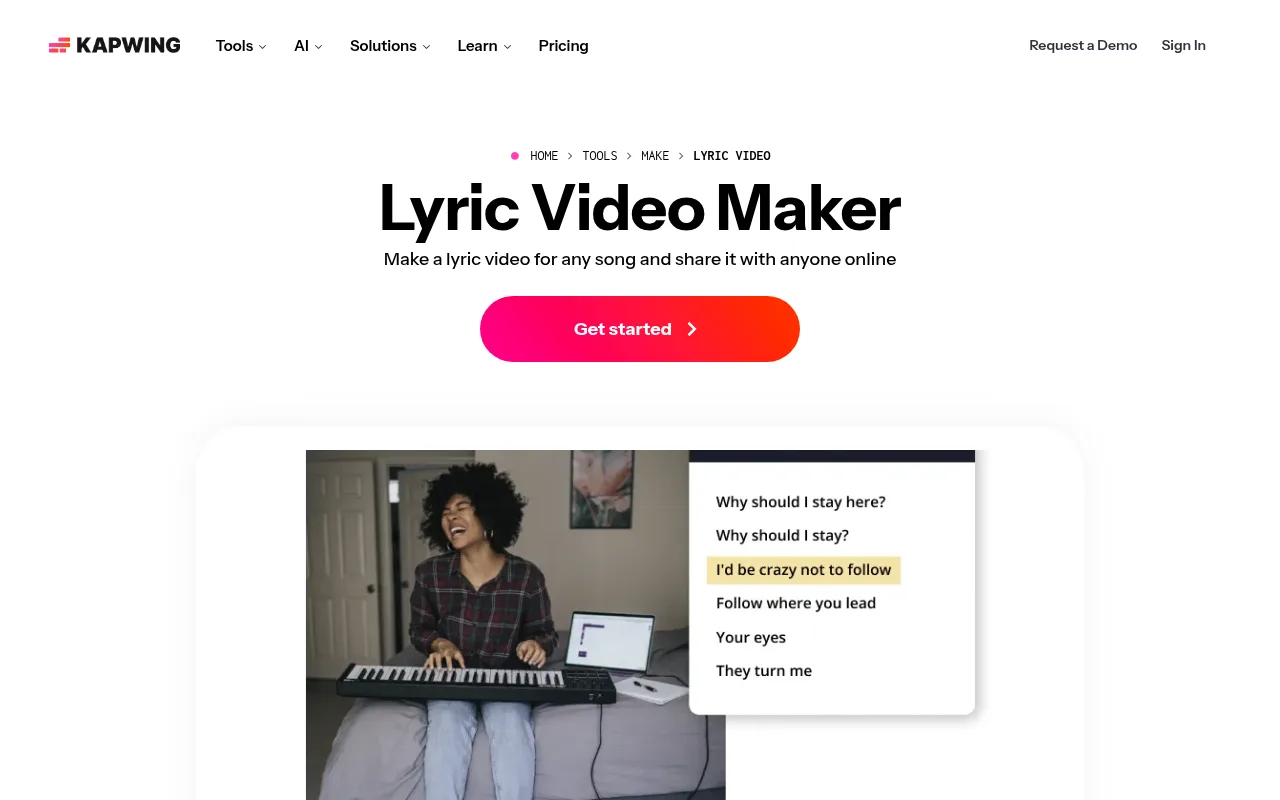
From there you change the font, size and style of the words, and add b-roll from its built-in library of stock videos and images. It works in any browser, on a phone as well as a computer, and you can share the export straight to YouTube, Instagram, TikTok or Facebook. My roundup of the best AI subtitle generators goes deeper on how its auto subtitles compare.
CapCut
CapCut has a dedicated Auto lyrics option under Captions. It detects and pulls the lyrics out of a song in several languages and syncs them line by line, with no typing needed.
Once the lyrics are in, you adjust the timing and speed, then style them with its lyric templates, which include animated and 3D text effects. You can start from your own clips or from a template in its lyric video list. CapCut is free to try online or as a download, and it exports in formats made for YouTube and TikTok.
Specterr
Specterr takes a different approach. It doesn't transcribe anything. You type or paste the lyrics, then set the timestamps yourself on a drag and drop timeline, with a live preview that updates as you go.
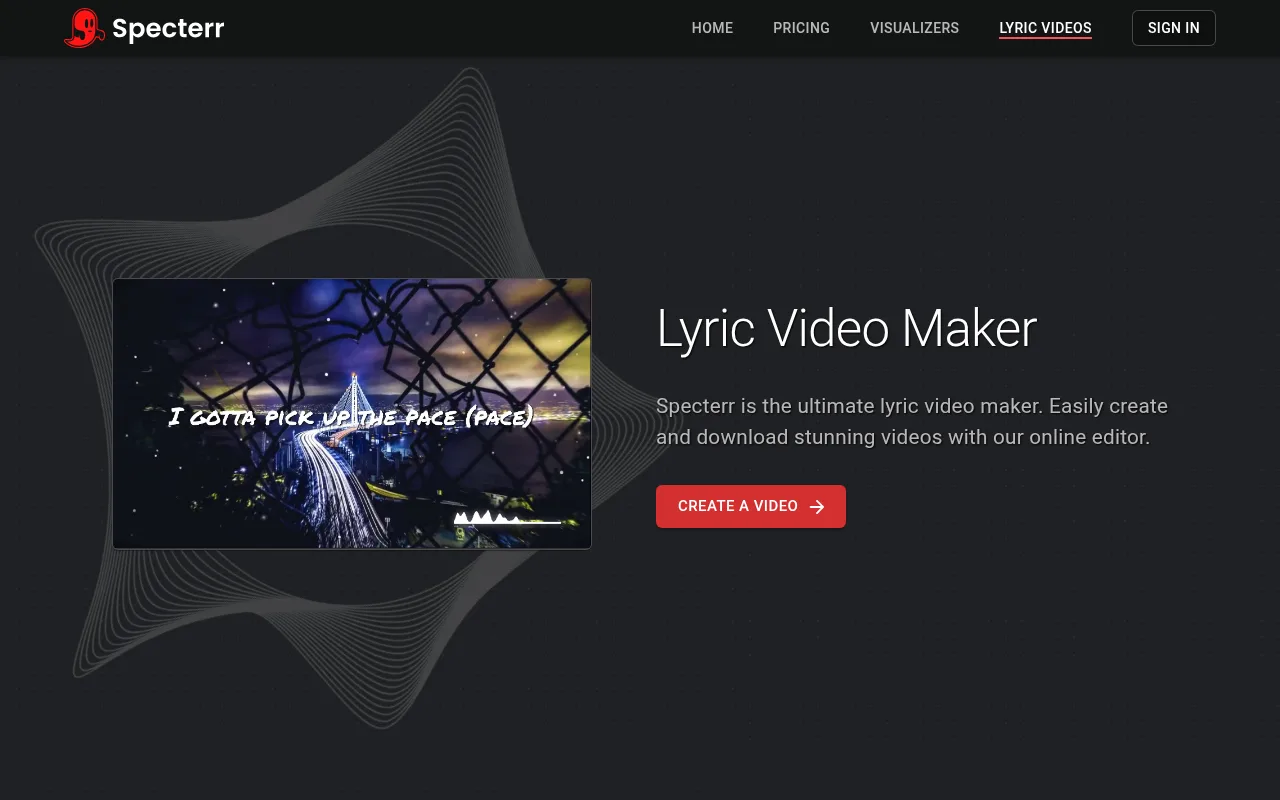
What it does well is the picture behind the words. You start from a preset, upload an MP3 or WAV, and add a visualizer that reacts to your audio, with effects and particles on top. Exports are HD at up to 60 frames a second, and videos can run up to 1 hour long. It's the right pick when you want to place every line by hand.
Chillframe
Chillframe covers the other half of a lyric video: the song and the scene. It makes original music from a short description, and you can choose With vocals to get sung lyrics written from your brief, in English, Spanish, French, German, Portuguese, Japanese, Korean or Hindi. If you already have a song, upload your own MP3 or WAV instead.

It then makes a matching scene for the song. Lite gives you a still scene, and Plus gives you a gently moving one on the Creator plan and up. That's the "lines over a scene" style done for you, and videos run up to 1 hour long on every plan.
For the words, the editor has two text styles made for a lyric or a quote: Editorial Quote, an italic serif that fades in, and Word Pop, bold capitals with an outline that pops onto the screen. Chillframe doesn't transcribe or time lyrics for you, so you place each line on the timeline yourself, or take the finished video into one of the tools above for automatic timing. Plans start at $19 a month.
How to make a lyric video with AI, step by step
Pick the tool that matches your style first: Rotor or CapCut if you want the timing done for you, Specterr if you want to place every line yourself, and Chillframe if you need the song and the scene as well. After that, the steps are much the same.
- Get the song ready. Use a finished mix, not a demo, as an MP3 or WAV. If you don't have one, make a track with vocals first. My guide to the best AI music generators covers the options.
- Have your lyric sheet open. You'll need the real words to check the transcription against, line by line.
- Pick your style. Kinetic type, lines over a scene, or karaoke. This decides how precise the timing has to be.
- Upload and transcribe. Add the song to your tool and run its auto lyrics or auto subtitle feature. In Specterr, paste the lyrics instead.
- Correct the words. Fix every misheard word against your lyric sheet before you touch the timing. It's quicker that way round.
- Fix the timing. Play it through and drag each line so it appears just as the singer starts it. For karaoke, go word by word through the chorus first, since it repeats.
- Style the text. Pick one font and stick with it. Keep the words inside the middle of the frame, away from the edges where YouTube's player controls sit, and make sure they read clearly against the background.
- Set the scene. Add your background, clips or visualizer. A calm scene with gentle movement keeps the eye on the words.
- Export for YouTube. YouTube's upload guidance gives 16:9 as the standard aspect ratio on a computer and recommends an MP4 with H.264 video and AAC audio. Export at 1080p or higher.
- Write the title and description. Put the song name and "lyrics" in the title, and the full lyrics in the description.
Getting the timing right
Treat the transcript as a strong first version rather than the finished thing. Long held notes, harmonies and backing vocals are worth a second listen, so proofread it every time.
A few habits make it faster:
- Fix words before timing. Changing a word can shift where a line breaks, which undoes timing you've already set.
- Do the chorus once. Get the first chorus right, then use it as your guide for the others.
- Let lines arrive slightly early. A line that appears a moment before it's sung is easier to read than one that arrives late.
- Watch it back at full size. Small timing slips are easier to spot on a big screen than in an editor preview.
Lyric videos on a lofi or ambient channel
Lyric videos fit music channels well, and lofi is a good home for them. A song with soft vocals, a calm scene and well-timed words is a relaxed watch, and it gives a channel that mostly posts instrumental mixes something different to put out.
The "lines over a scene" style is the natural match here. A rainy window or a quiet café behind the words matches the music, and a gently moving scene that loops cleanly holds attention without pulling it away from the lyrics. My guide to the AI video loop generator covers how those looping backgrounds are made.
Make lofi lyric videos with Chillframe
Lofi and ambient channels are a growing space on YouTube, and one that already has listeners for its mixes is a good place to try lyric videos. Chillframe makes the other half of a lyric video: the song, the scene behind the words and the finished video, published to your YouTube channel.
I'd run a channel like that as two kinds of upload.
The regular mixes run themselves. Set up a Series with Instrumental audio and a look such as Rainy Tokyo, on the evenings your mixes go out, say Tuesday and Friday. Your first post is held for review. With auto-publish on, approve it, and the mixes are fully hands-off from there: Chillframe automatically makes a fresh one on each of those days and publishes it with an optimised title, description and tags and a thumbnail taken from the video.
The lyric videos are made one at a time. Start a project in the Studio, choose With vocals, and describe the song and the scene, such as a slow vocal track for a café window at dusk. You get an original song with lyrics written from your brief.
The limit for this niche is the timing. Chillframe doesn't transcribe or time lyrics, so you place each line yourself in the editor with Editorial Quote or Word Pop, or take the video into Rotor or CapCut for automatic timing. With the Series covering the mixes, that's where your time goes.
For the wider picture, see my roundup of the best AI music video generators and my guide to starting a lofi YouTube channel. The mixes and the lyric videos both come out of one monthly pool of usage, and the smallest pool is the Starter plan at $19 a month.
AI lyric video generator FAQ
Can an AI lyric video generator sync lyrics automatically?
Yes. Rotor, VEED, Kapwing and CapCut can all listen to a song, write out the words and time them to the music. All four let you correct the words afterwards, so read the result against your lyric sheet before you export.
Can I use my own song and artwork?
Yes. Every tool in this list lets you upload your own audio, and most let you add your own images or clips too. Specterr takes MP3 and WAV files, Kapwing also takes a link to the audio, and Chillframe's editor takes your own MP3 or WAV.
How do I fix lyric transcription or timing errors?
Open the lyric or subtitle track in the editor, correct the words by hand, then move each line's start and end until it lands on the sung word. Rotor keeps its timestamps under a Timings tab, and Specterr uses a drag and drop timeline.
What export format works best for a YouTube lyric video?
A 16:9 MP4 at 1080p or higher. YouTube's own upload guidance gives 16:9 as the standard aspect ratio on a computer and recommends an MP4 file with H.264 video and AAC audio.