List
Anime AI video generator: 6 tools for anime scenes, characters and lofi loops
How each tool makes the anime look, how it keeps one character the same from clip to clip, and which one suits a channel that plays one calm scene for an hour.
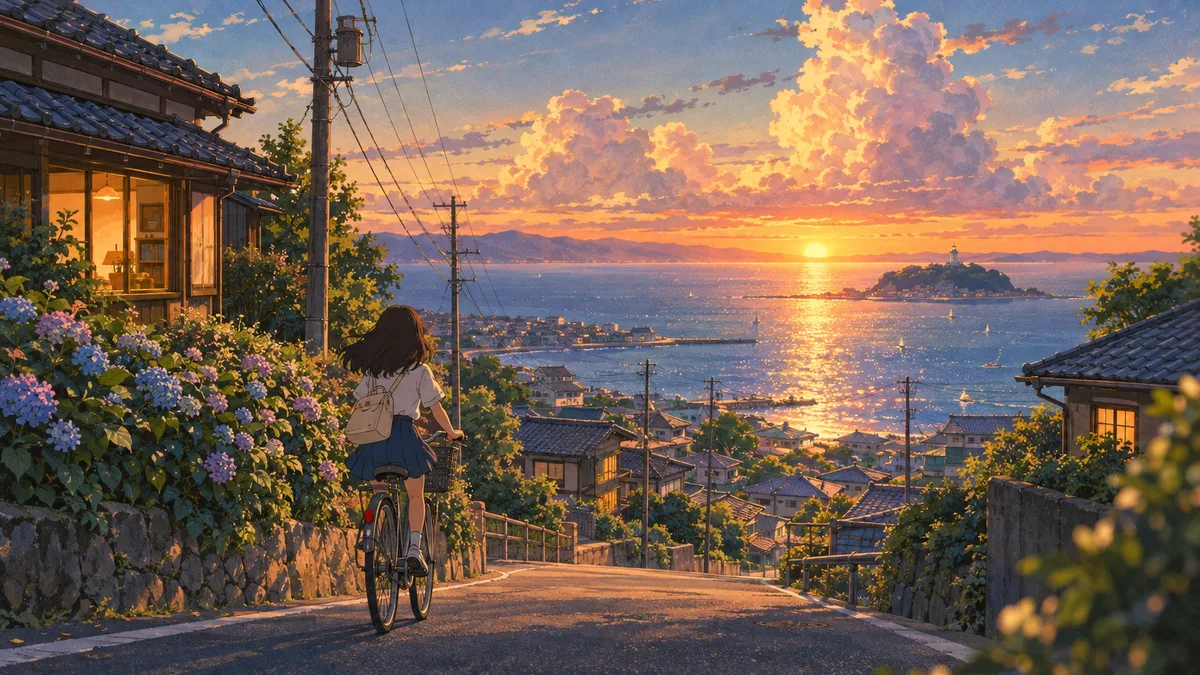
An anime AI video generator turns a prompt, a picture or a piece of footage into a short clip that looks like hand-drawn anime. The six I'd look at are Kling for new scenes with lots of motion, PixVerse for its anime presets, Vidu for keeping a character the same, Domo AI for restyling your own footage, Midjourney for animating a still you already love, and Chillframe for the slow lofi-anime loop a music channel runs on. The right one depends on what you're making: a story with action and dialogue, or a calm scene that plays for an hour.
What an anime AI video generator does
Every tool here works in one of three ways, and most do more than one:
- Text to video: you describe the scene and the tool makes it from nothing.
- Image to video: you give it a still, and it animates that picture.
- Video to video: you give it footage, and it redraws it in an anime style while keeping the original movement.
The second route is the one to start with. Luma's guide to anime video says the most effective workflow starts with still images and then animates them, rather than going straight from text to video. You get to approve the look, the character and the framing in a picture before you spend anything on motion.
The good news is that anime suits these tools well. Vidu's own write-up calls anime and stylised content the strongest use case for AI video right now, because a drawn style forgives small changes from frame to frame that would look wrong in a realistic clip.
Choosing an anime AI video generator
Four things decide which tool suits you.
- Keeping a character the same. Look for reference images or a character sheet, and a face that stays the same when the head turns. Luma's guide calls character consistency the primary challenge for anime creators.
- Keeping the style through motion. Some tools hold clean line work and flat cel shading, the solid blocks of colour classic anime is drawn in, while things move. Others drift back towards a realistic look unless you keep asking for the 2D style.
- Clip length and loops. Most clips are 5 to 15 seconds. If you need a scene that repeats for a long video, look for a tool that can end a clip on the frame it started with.
- Cost and commercial terms. Free tiers are common. Look at the commercial terms for free clips, and at what a finished minute costs once you pay.
The 6 best anime AI video generators compared
| Tool | Routes to anime | Character consistency | Best for |
|---|---|---|---|
| Kling | Text and image to video, 2D style prompts | Elements and multi-image references | Action scenes and multi-shot |
| PixVerse | Text and image to video with presets | One reference image | Quick anime clips with audio |
| Vidu | Anime art to video, reference to video | Up to seven reference images per clip | One character across many clips |
| Domo AI | Video to video restyle, image to video | Your footage and reference images | Turning real footage into anime |
| Midjourney | Animates a still, with niji for anime | The still you start from | Animating art you already made |
| Chillframe | A moving lofi scene from presets or words | A Series can keep the visuals the same | Long lofi-anime music videos |
Two more are worth a look: Hailuo, which PixVerse's tests found held a face, costume colour and proportions from a hand-drawn character sheet, and Luma, which turns existing video into anime with its video to video mode. The six below are the ones I'd start with.
Kling
Kling makes anime scenes from text or from a picture, and it's strong on motion. Kling's anime prompt guide tells you to describe the 2D look in plain words, such as clean cel-shaded line work, a soft hand-painted background or a warm sunset palette, and to steer the prompt back to those traits if a clip comes out too realistic.
For a recurring character, Kling's Elements system takes reference images of a character, a prop or a place, so the same face turns up shot after shot. It also does multi-shot sequences, where you set the framing and length of each shot, and sound, with characters' lips matching the dialogue in Japanese, English and other languages.
Where it slips: PixVerse's ranking found Kling's faces drift across cuts when you don't give it a reference image, and Luma's guide says it shines on action but may not hold cel shading as steadily as some other models in still dialogue scenes. So give it a reference every time. Kling's homepage doesn't list prices, and PixVerse lists a free tier.
PixVerse
PixVerse is the quickest way to an anime clip. Its own ranking puts it first, so bear that in mind, but the detail is useful: it has anime presets for cel-shaded, soft watercolour and high-contrast action looks, and clips run from 1 to 15 seconds at 1080p with audio.
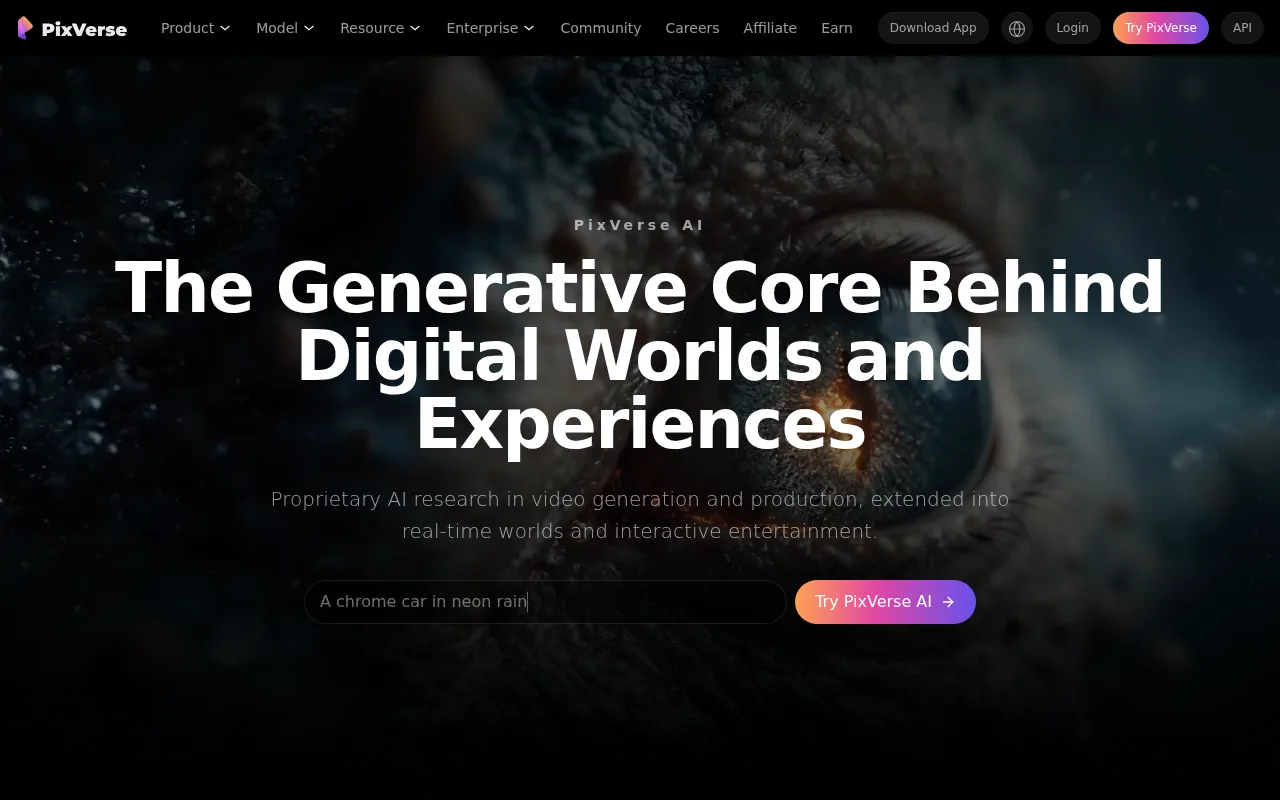
For consistency, you give it one reference image and it keeps the face and costume through the motion, according to PixVerse's tests. Its homepage also lists consistent characters and lip sync. On price, PixVerse puts a 1080p clip with audio at about ¥0.71, and there's a free tier, with paid plans for regular use.
Vidu
Vidu is the one to try if a single character has to appear in clip after clip. Its AI animation generator does text to video and image to video, and Vidu also has an Anime Art to Video feature that turns 2D artwork into moving clips.
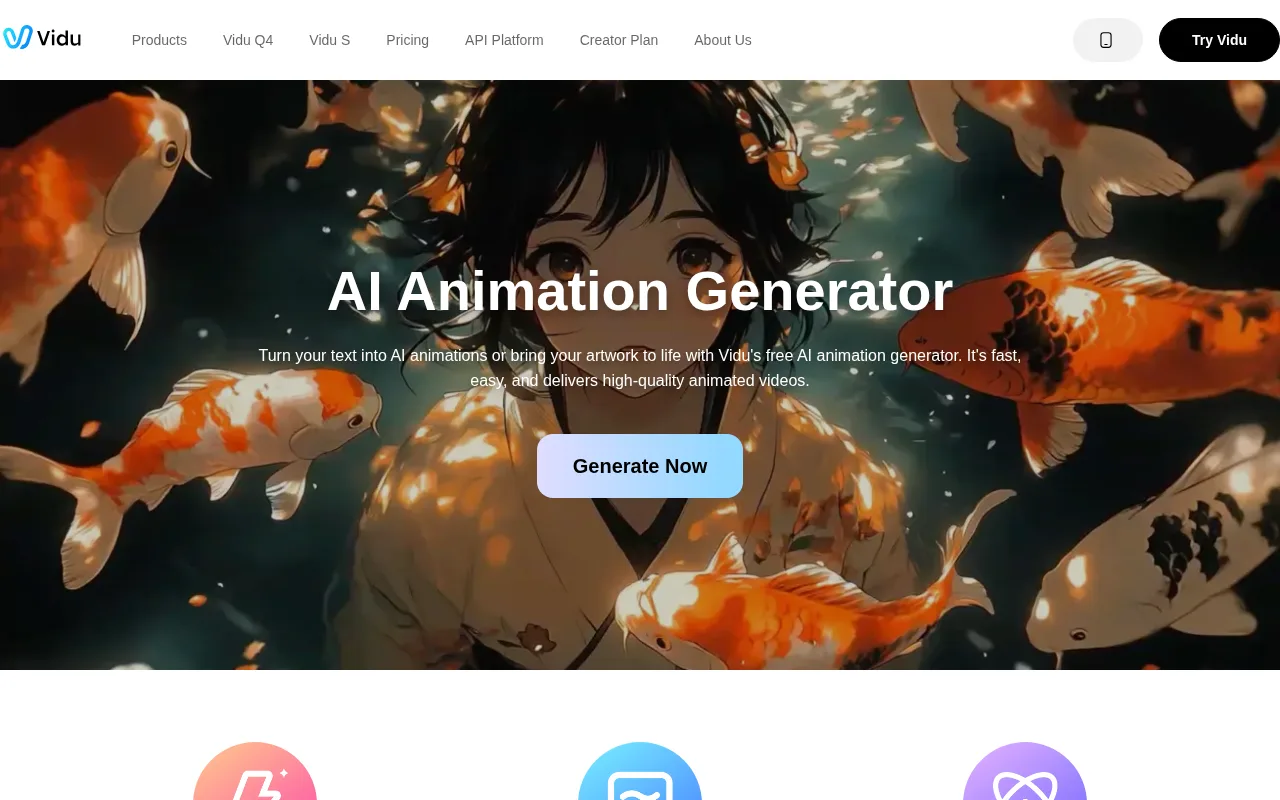
The standout is reference to video. Vidu says its multi-reference feature takes up to seven reference images per clip, so you can give it the character from the front, the side and the back, plus the room they're in. Vidu is also open about the limits: it says clips hold well at 4 to 8 seconds, drift starts to show around the middle of a 16 second clip, and scenes where several characters touch or interact still break down. Commercial use is on Vidu's paid plans.
Domo AI
Domo AI is the restyle tool. You give it footage, and it redraws it as anime while keeping your movement and timing. Its homepage says it will "turn your footage into anime-style scenes", and it also does image to video and text to video.
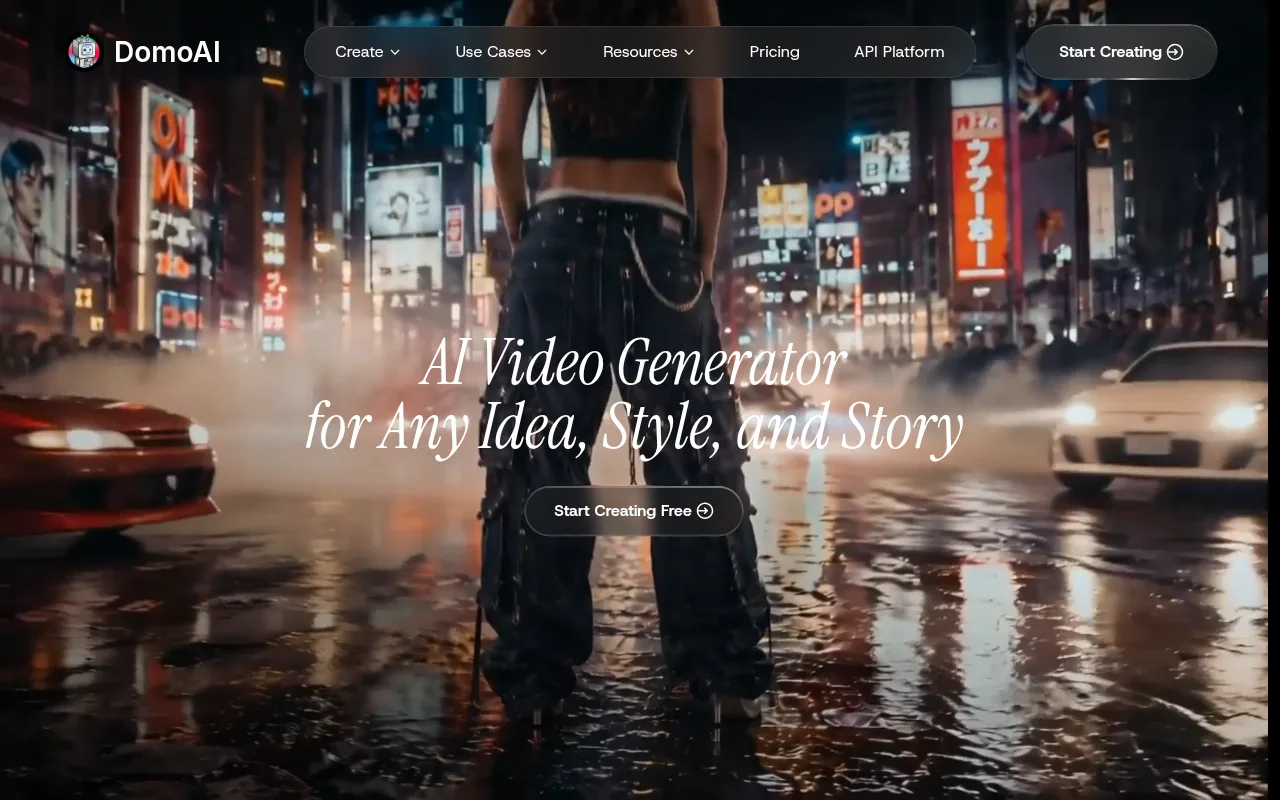
Consistency comes from your source. If you film the same person, room or object, the anime version keeps them, and Domo AI's Omni Reference blends image, video and audio references into one consistent clip. It has a free plan, it doesn't publish clip lengths or prices on the homepage, and it says everything you make with it can be used commercially.
Midjourney
Midjourney is the stills-first route in one place. You make or upload an image, then press Animate, and Midjourney's video docs say you get a 5 second clip that you can extend by about 4 seconds at a time, up to 21 seconds. For the anime look, its sister app niji・journey makes anime images and animates them the same way.
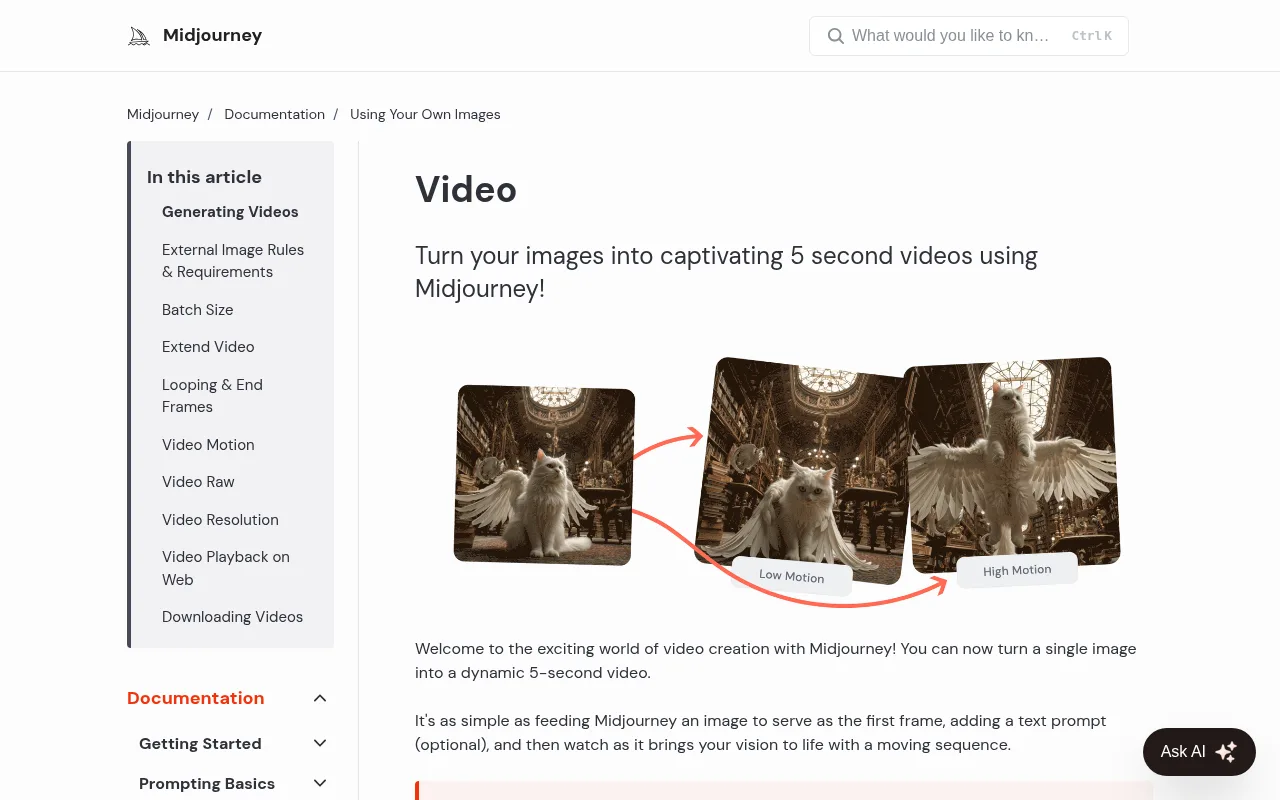
Two features matter for a channel. A Loop button makes the clip end on the same frame it started with, and niji・journey lets you pick an end frame or tick a loop box. The catch is that style references and image prompts don't work with video, so your consistency comes entirely from the still you start with. Video works on every Midjourney plan in its Fast mode, and a clip uses more of your plan's time than an image does.
Chillframe
Chillframe is our tool, so weigh that as you read. It makes a different kind of anime video from the rest of this list: the lofi-anime music video. You pick a look or describe a scene, and it makes original music and a matching scene, then puts them together as a finished video up to 1 hour long on every plan.
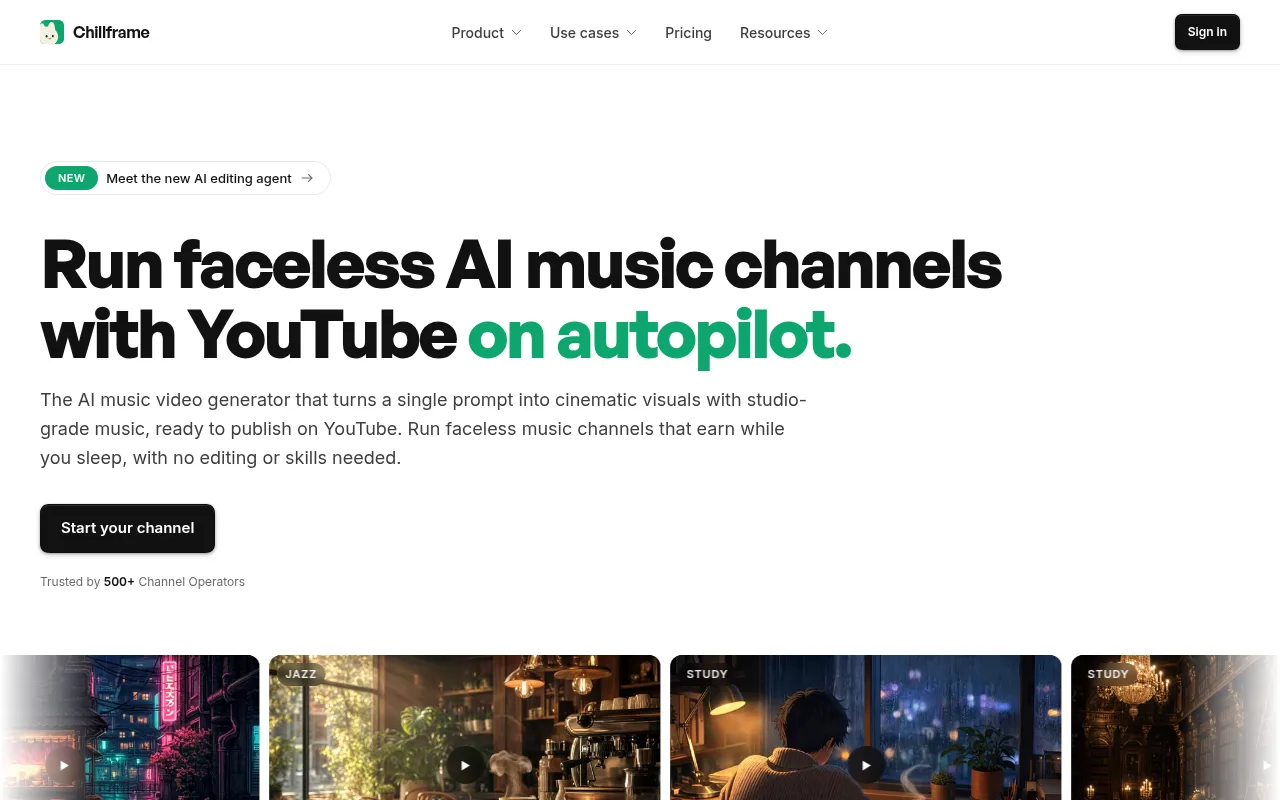
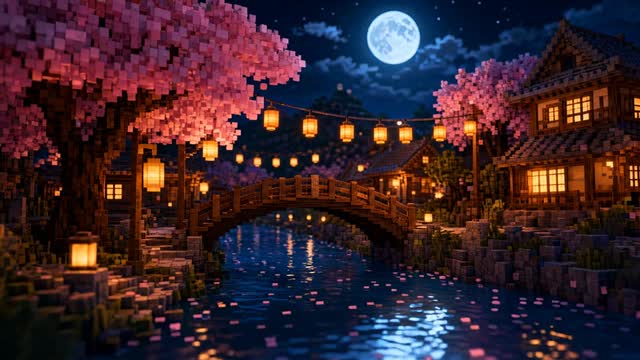
There are two anime groups in the presets. Lofi Anime has Anime Rainy Bedroom, Anime Rooftop Dusk, Anime Night Train, Anime Character Window and Konbini Rain, and Citypop Anime has City Pop Balcony, City Pop Coast Drive and City Pop Apartment for the retro 1980s look. Lite gives you a still scene. Plus gives you a moving scene: one motion clip, up to 15 seconds in Standard quality or 30 in Premium, closed into a loop that plays for the whole video.
If you want action, dialogue or a story across many shots, Kling or Vidu will do that better. Chillframe is built for the calm scene that runs under an hour of music, and for keeping a channel posting. A Series automatically makes fresh videos 1 to 7 times a week and publishes them to YouTube, and you choose whether the visuals stay the same, similar or different each time. Approve the first video and from then on it's fully hands-off. Plans start at $19 a month, and Plus starts on the Creator plan at $49.
Restyling footage versus making new scenes
Restyling keeps what you shot. Domo AI and Luma take your footage and redraw it, so the movement, timing and camera stay exactly as you filmed them. That suits anything where the motion matters more than the scene, such as a dance, a walk or a real place you want to show in anime style.
Generating gives you scenes you could never film: a floating city, a rainy Tokyo street late at night, a train crossing the sea. Kling, PixVerse and Vidu make those from a prompt or a picture. You trade some control for that, because the tool decides how things move. My roundup of text to video AI tools covers that route in general, and the AI animation video generator guide covers animation styles beyond anime.
Your own drawing is a third option. Upload it to an image-to-video tool and describe how it should move: Vidu's Anime Art to Video feature is made for 2D artwork, and Midjourney and niji・journey animate any image you upload.
So the pick follows what you're making. For a story with action and dialogue, start with Kling or Vidu and a good character sheet. For your own footage, try Domo AI.
For a lofi channel, generating from an approved still is the better fit. You want one beautiful scene that holds up for an hour, not your own footage, and starting from a still means you sign off on the picture before any motion is made.
Keeping one character consistent across scenes
This routine works in any tool that takes a reference image.
- Make one approved still of the character. Get the face, hair, outfit and colours right in a picture first. This is your master reference.
- Show the character from more than one angle if the tool allows it. Vidu takes up to seven references, and Kling's guide asks for references that show the outfit, silhouette and key details clearly.
- Keep one prompt skeleton. Write the style line once, such as "clean 2D anime line work, flat cel shading, soft painted background", and paste it at the start of every prompt. Only change the action and the setting.
- Use the same reference every time. PixVerse's tests found Kling's faces drift across cuts without one.
- Keep clips short. Vidu's own guidance is that 4 to 8 second clips hold a character best.
The lofi-anime look and why it loops well
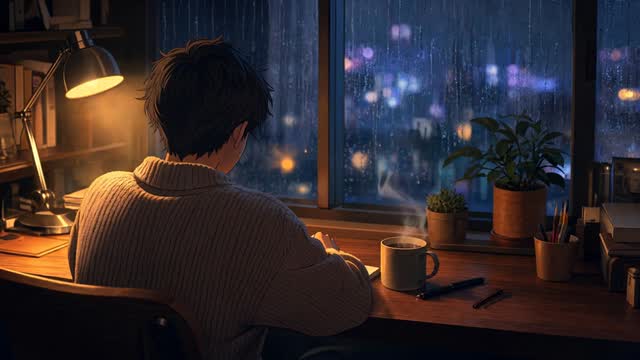
The lofi-anime look is a quiet, lived-in scene: a desk by a rainy window, a rooftop at dusk, a train at night, a small town at sunset. A character, if there is one, is often seen from behind or from a distance, studying or looking out of a window. Chillframe's Anime Character Window preset is built that way, with one original character at a desk seen over their shoulder.
That look happens to suit AI video very well. The motion is small and slow: rain on glass, steam from a mug, a curtain moving, lights flickering in the distance. Small, slow movement is where these tools are at their best, and a face seen from behind never has to stay identical through a head turn. The tools' weak spots barely show.
It also loops cleanly. When a clip starts and ends on the same frame, the join can't be seen, and the scene can play under an hour of music with no visible cut. Midjourney's Loop button and niji's end frame do this for a single clip. Chillframe closes every moving scene into a loop for you, dissolving the end of the clip back over its start. If you want more ideas for the scene itself, my guide to an aesthetic YouTube channel covers the looks that work, and Japan lofi covers the music that usually goes with them. For more on loops in general, see the AI video loop generator roundup.
What anime AI video generators cost
Most of these tools have a free way in, but very few publish how much you get. Domo AI has a free plan, and PixVerse's ranking lists free tiers for PixVerse, Kling, Hailuo, Pika and Luma. That's enough to test one scene and see if the style suits you.
Before you settle on one, look for three things on its pricing page:
- The cost of a finished minute. PixVerse puts a 1080p clip with audio at about ¥0.71. On Midjourney, a video clip uses more of your plan's time than an image, and extending a clip costs the same as making a new one.
- Anime styles on the free tier. PixVerse's ranking notes that some platforms gate every anime style behind a paywall.
- Commercial use of free clips. Vidu keeps commercial use for paid plans, while Domo AI says everything you make can be used commercially.
For a long lofi video, the cost works differently. Chillframe makes one moving scene and loops it under the music, so you're not paying for an hour of new motion. Usage comes from your plan's monthly pool, and plans start at $19 a month.
Build a lofi-anime channel with Chillframe
Calm anime scenes under music are a growing corner of YouTube, and a channel built on them never needs a face, a voice or a story told across shots. Chillframe makes everything that channel posts: original music made fresh for each video, the anime scene, the finished video and the upload to your YouTube channel.
If your channel posts city pop on Friday and Saturday nights, work in this order:
- Find the scene first. Browse the Citypop Anime and Lofi Anime looks, or write your own, such as a quiet night bus with rain running down the window.
- Make one video by hand and watch it through. If that scene is the one you want people to recognise, it's your channel's signature.
- Open its menu in the Studio, pick Make it a Series, and choose Friday and Saturday at 8pm. Set the visuals to Same to keep the signature scene every week, or Similar for new scenes from the same brief and look.
- Leave the audio on Instrumental for lofi beats, or switch to With vocals for a sung city-pop track.
The first post waits for your review. With auto-publish on, you approve that one and the channel runs itself from there, fully hands-off: each new video goes up on schedule with an optimised title, description and tags and a thumbnail taken from the video.
One limit matters for long study sessions: each video runs up to 1 hour. A three-hour session is three hour-long uploads in a Series, or three hours joined in an editor before you upload.
Moving anime scenes are Plus, which starts on the Creator plan at $49 a month and gives you three Series, so a night channel and a study channel can run side by side. If you're weighing up tools for a lofi channel more broadly, my best lofi video generator comparison is a good next read.
Anime AI video generator FAQ
Is there a free anime AI video generator?
Yes. Vidu, Domo AI, PixVerse, Kling, Hailuo, Pika and Luma all have a free way in, though the allowances are small and rarely published as a number. Use one to test a scene, and look for a watermark or a limit on commercial use before you post a free clip.
Can I monetise anime AI videos on YouTube?
Yes, when the tool's terms allow commercial use and the channel meets YouTube's own monetisation rules. Domo AI says everything you make with it can be used commercially, and Vidu keeps commercial use for its paid plans. Keep the music licensed too. My guide to faceless YouTube channel monetisation covers YouTube's side.